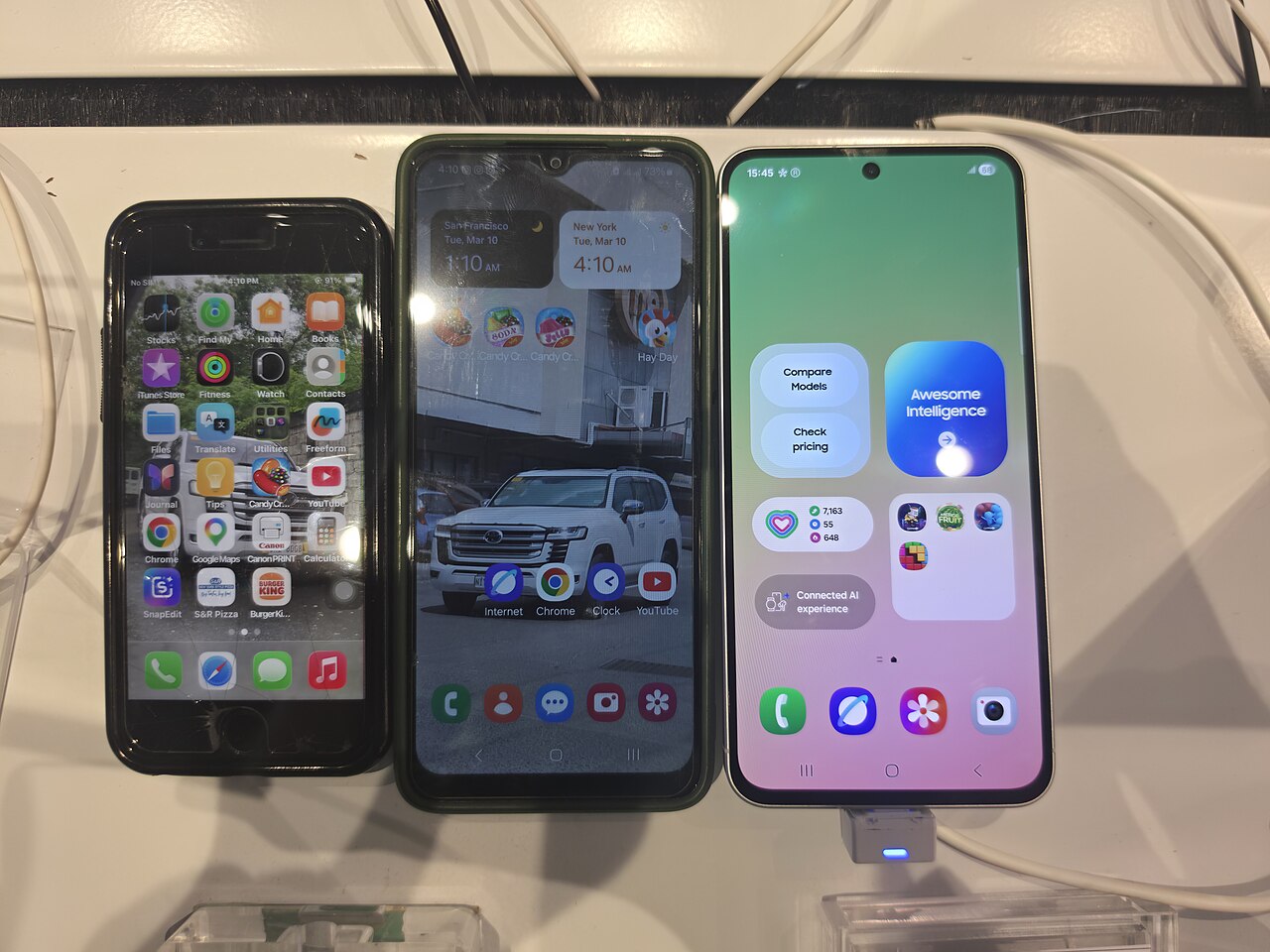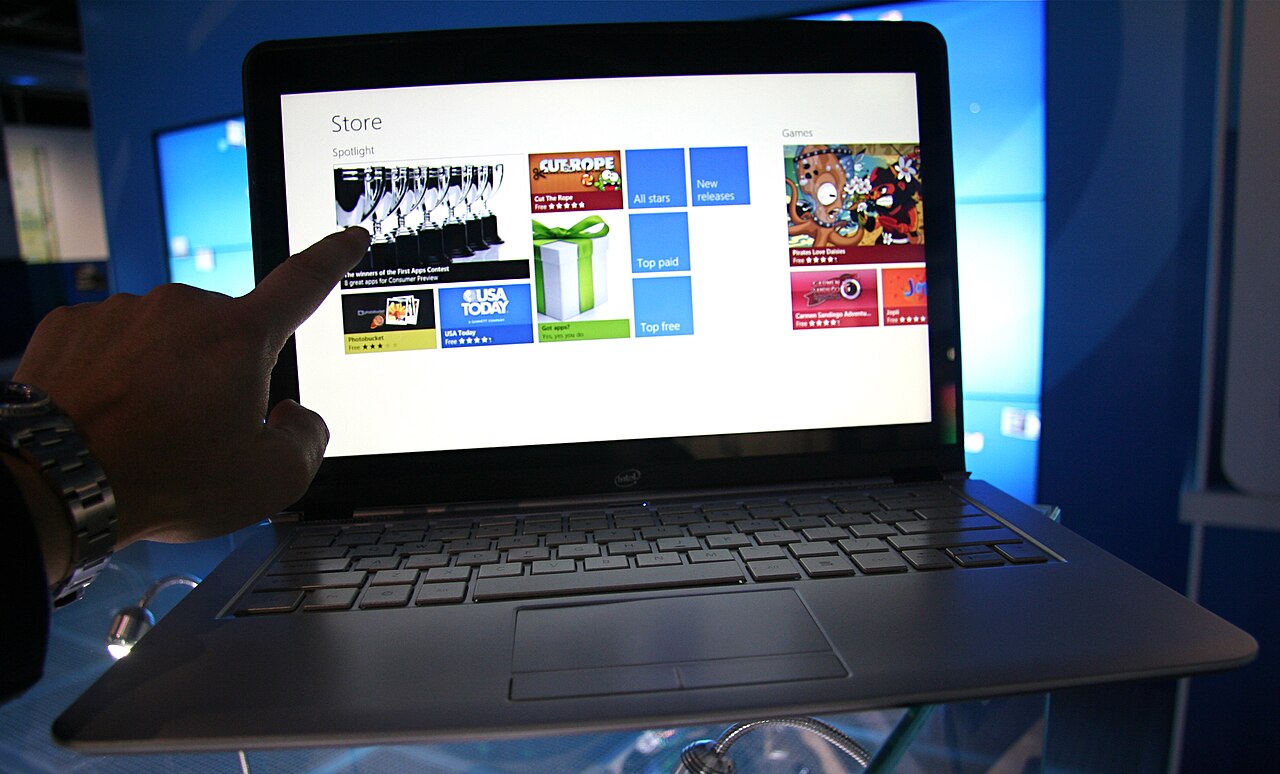
A general guide to phone care and repair. For hardware damage, have your phone checked by a trusted technician.
Touchscreen problems can cause mistyped text, apps to open on their own, or parts of the screen to stop responding. Inputs registered without being touched are often called ghost touches, while an unresponsive screen can feel as though the phone has frozen. During a service inspection, symptom patterns matter because software issues, screen surface conditions, and component damage can look similar.
Identify the pattern of the problem
Notice whether the problem affects the entire screen or only certain areas. Also note whether it occurs while charging, after the phone has been dropped or exposed to liquid, or only when opening particular apps. This information helps narrow down the checks, but is not enough to identify a faulty component with certainty.
If the image is still moving but touches are not registered, the problem may involve the touch input pathway. By contrast, if animations and the entire display freeze as well, the system or an app should also be considered. Ghost touches can be triggered by moisture, accessories interfering with the screen surface, charging-related interference, or screen damage.
Start with the surface and accessories
Disconnect the charging cable first, then make sure your hands are clean and dry. Clean the screen with a soft, dry microfiber cloth without pressing hard. Do not spray liquid directly onto the phone. If the exterior is wet, dry it before trying again; do not charge the phone while the connector is still damp.
Remove any case that presses against the edges of the screen. Check whether the screen protector is cracked, lifting, or trapping moisture. A protector that comes off easily may be removed gently according to its instructions, but do not pry at broken glass or force off a firmly attached layer. If the phone's screen itself is lifting, stop checking it yourself, as this condition requires a technician's attention.
Check the system and charging
Restart the phone normally. If touch input does not work at all, follow the force-restart procedure in the device's official guide, as button combinations vary between devices. Once the phone turns on, test touch input in several areas of the screen using a built-in app. If the problem occurs in only one app, close it and check for updates.
If the problem occurs only while charging, stop using the current cable or adapter until its condition has been checked. Use a compatible charger that meets safety standards and an undamaged cable. Avoid repeated testing with accessories that become excessively hot, give off an odor, or have peeling insulation. Do not immediately perform a factory reset: it erases data and is not a solution for physical damage.
Know when to stop trying
Take the phone to a technician if the problem persists after simple checks, certain touch areas remain unresponsive, or the issue appears after an impact or exposure to liquid. Lines on the display, flickering, cracks, and discoloration also need inspection. A technician needs to assess the screen, internal connections, and related parts before deciding what to do; screen replacement should not be recommended based on a single symptom alone.
Stop using the phone immediately if the screen is lifting, the body is bulging, the phone is very hot, or there is an unusual smell. Do not press the screen back into place, take the device apart, or try to heat it. If ghost touches continue, lock or turn off the phone if possible to prevent it from opening apps and issuing commands unintentionally. Back up data only when the device is safe and stable enough to use.