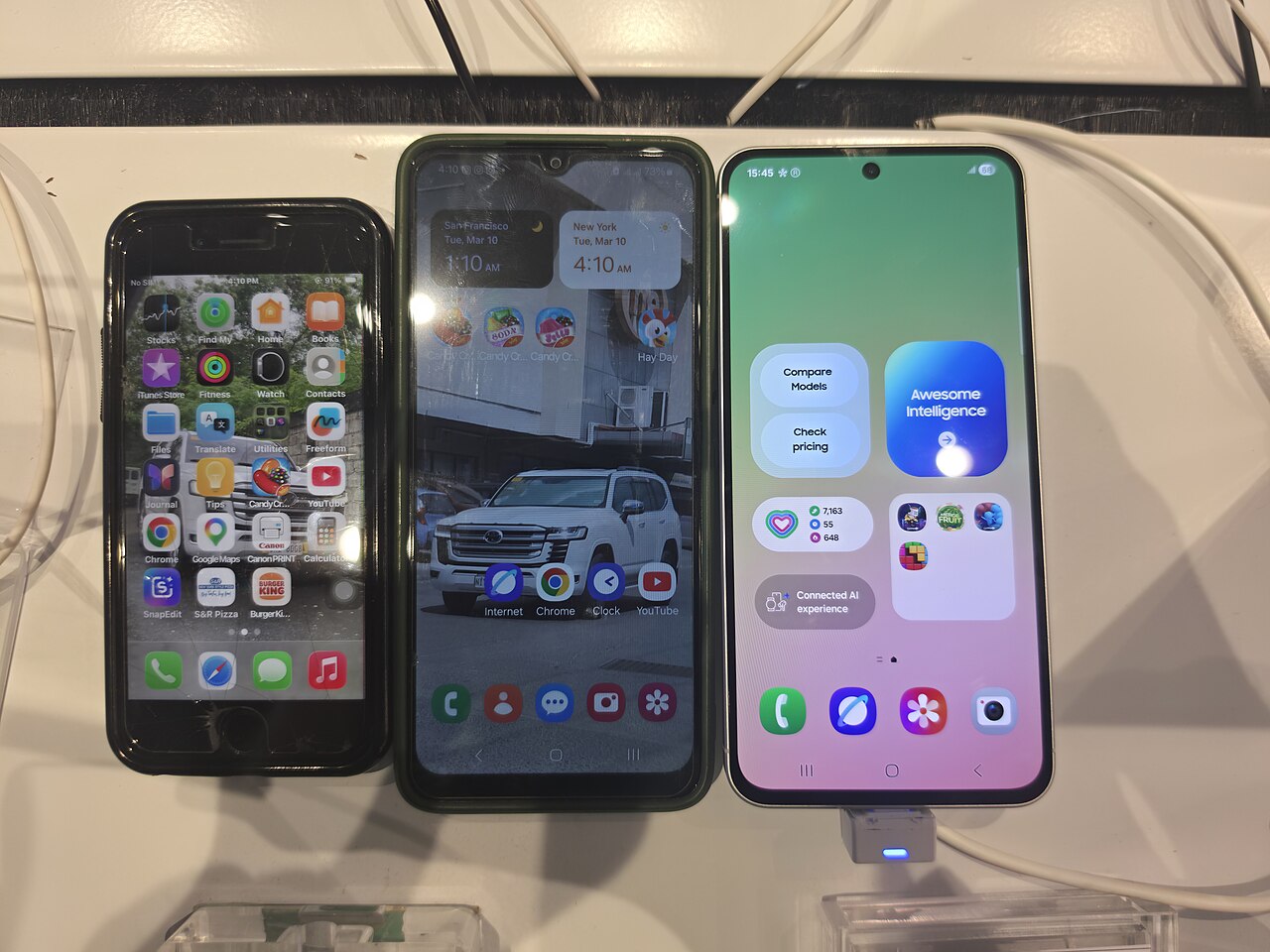
A general guide to phone care and repair. For hardware damage, have your phone checked by a trusted technician.
Wi-Fi or Bluetooth problems are usually indicated by a grayed-out button, a switch that remains off, or a feature that turns off again shortly after being activated. In repair cases, these symptoms do not always mean that the wireless component is damaged. Troubleshooting should begin with the settings and system condition before moving on to the hardware.
Identify the symptoms
Observe how the phone responds when Wi-Fi or Bluetooth is activated. With a minor issue, the button may respond to touch but not immediately change status. Other common symptoms include the activation process getting stuck, no networks or devices appearing in the list, and the connection dropping on its own after briefly becoming active.
Also distinguish between a feature that cannot turn on at all and one that turns on but fails to connect. If the button is active and the list of networks is visible, the issue may involve the password, target device, router, distance, or signal interference. However, if the button cannot be activated at all, troubleshooting should focus on the phone’s system and connectivity module.
Common causes
Temporary system issues are a fairly common cause. Background processes may become unresponsive after the phone has been used for a long time, updated, completely drained of power, or encountered a failure while restarting. Airplane mode, power-saving features, certain restrictions, and device management profiles may also affect connectivity.
Problematic network settings may prevent Wi-Fi or Bluetooth from working properly. In addition, insufficient storage space may affect system stability. If the phone was recently dropped, exposed to liquid, overheated, or previously repaired, the problem may be related to internal connections, the antenna, the wireless module, or the mainboard. Determining the exact cause requires an inspection by a technician.
Safe steps to try
Start by turning off airplane mode, then activate Wi-Fi or Bluetooth again. Next, restart the phone and wait for the system to finish loading before trying again. Make sure the device has returned to a normal temperature. If the phone feels hot, stop using it, disconnect it from the charger, and place it in a cool, dry location without putting it in a refrigerator.
Check for system updates through the device’s official settings menu. Free up sufficient storage space by deleting files or applications that are no longer needed. If the issue persists, use the option to reset network settings. This step usually removes saved Wi-Fi networks, Bluetooth pairings, and some connection settings, but it should not delete photos or documents. Always read the information displayed before confirming.
Test Wi-Fi with another network and test Bluetooth with another device that is known to work. This helps determine whether the issue lies with the phone, router, or accessory. Do not install unverified repair applications, modify the system with unofficial tools, or disassemble the device yourself. Before attempting a system recovery that erases data, create a backup and make sure your own account information is available.
When to take the phone to a technician
A technician should inspect the phone if the button remains grayed out, repeatedly switches off, or both Wi-Fi and Bluetooth fail after the basic steps have been completed. Stop troubleshooting on your own immediately if the problem began after the phone was dropped, exposed to liquid, or overheated, or if it shows other symptoms such as frequent restarts and signal loss.
A technician can perform diagnostics to distinguish between software issues and problems involving the antenna, connection paths, or modules on the mainboard. Provide an honest account of what happened, including when the symptoms began and the steps already attempted. Avoid requesting component replacement before a diagnosis because similar symptoms may have different causes.