A general guide to phone care and repair. For hardware damage, have your phone checked by a trusted technician.
Power and volume buttons often go unnoticed until the screen becomes difficult to wake or the sound cannot be adjusted. A button may feel stiff or sunken, require repeated presses, or stop responding altogether. During a service inspection, the button’s physical response needs to be distinguished from the system’s condition to avoid taking the wrong approach.
Identify the symptoms before attempting repairs
Check whether the problem affects one button or all of them. A button that still has a noticeable click but does not carry out commands requires a different inspection from one that is physically stuck. Also note when the problem began, such as after changing the case, dropping the phone, exposure to liquid, or a system update. The sequence of events helps a technician narrow down the inspection.
Try adjusting the volume through the on-screen settings while playing audio. If the sound can be adjusted on the screen but the side buttons do not work, the volume control function is still operating, while the button input path needs to be checked. For the power button, see whether the screen can still be awakened using tap-to-wake or raise-to-wake features, if they are available and already enabled.
Check the case and the outside of the buttons
Gently remove the protective case, then try pressing the buttons with normal pressure. A case that has shifted or presses too tightly against the sides can obstruct button movement or even make a button behave as though it is being held down. Do not test the buttons by pressing hard or repeatedly pressing them aggressively, as this does not address the cause and can lead to further mechanical damage.
If there is dust on the surface around the buttons, clean the exterior with a dry microfiber cloth or a very soft-bristled brush without pressing into the gaps. Do not insert needles or sharp objects, drip alcohol, or spray cleaning fluid into the gaps around the buttons. Dirt that has entered the phone requires a technician’s inspection rather than attempts to pick it out from the outside.
Distinguish system issues from button damage
An unresponsive system can make the buttons appear faulty. Check whether the touchscreen and other apps still work normally. If the phone remains usable, save your work and back up important data first. Restart it only through an available on-screen menu and when you have a way to turn the device back on; do not deliberately turn off the phone if the power button is faulty and you are unsure how to switch it on again.
As a temporary aid, use the on-screen volume controls or a built-in accessibility menu that provides device controls. Availability and location vary between Android and iPhone and across system versions. Avoid installing button-remapping apps that request broad permissions without understanding what they do. If the buttons still work intermittently, do not immediately perform a factory reset, as this erases data and does not repair physical damage.
Signs your phone needs a technician’s inspection
Take the phone for an inspection if a button is sunken, tilted, no longer moves normally, or develops problems after an impact. An inspection is also needed if the volume changes on its own, the power menu appears repeatedly, or the phone keeps restarting. The cause may involve the button mechanism, flex cable, connections, or frame; the faulty component cannot be identified from symptoms alone.
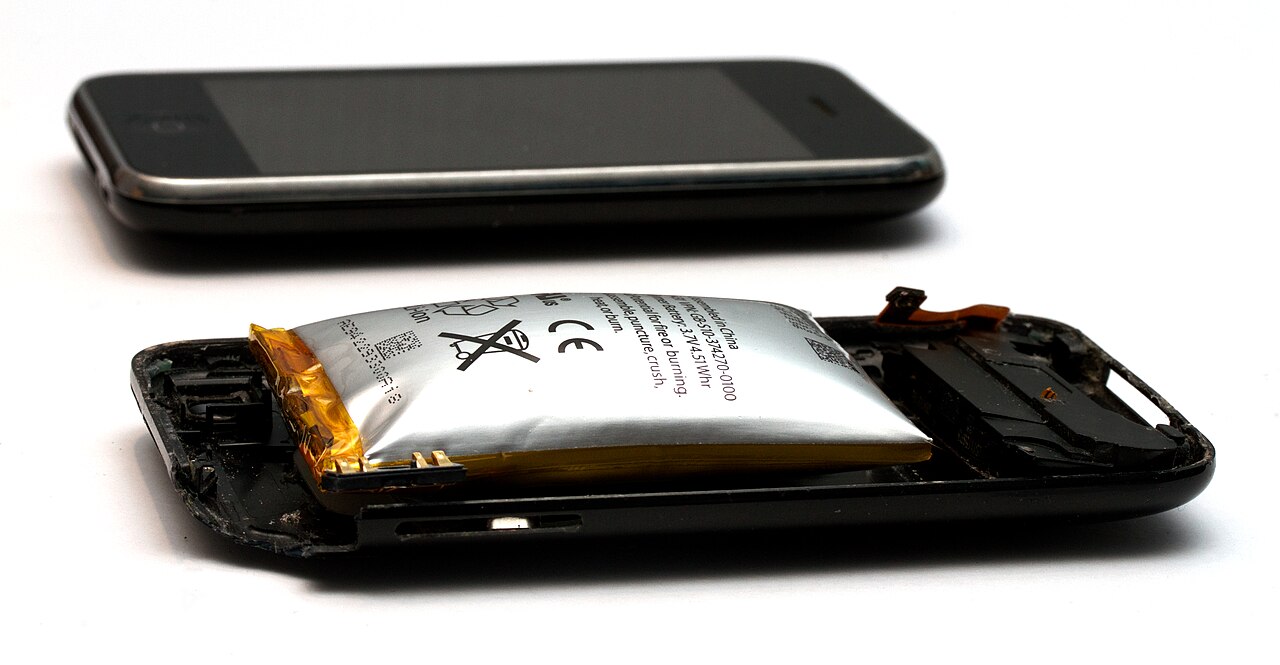
If the problem begins after exposure to liquid, disconnect the charger and do not charge the phone again. Turn it off through the on-screen menu if possible without forcing the buttons, then promptly arrange an inspection. If the frame is lifting, the body is bulging, or the device feels very hot, stop using it and do not press on the affected area. When handing over the device, explain what happened and which steps you have already tried without sharing account passwords.