A general guide to phone care and repair. For hardware damage, have your phone checked by a trusted technician.
A battery that drains increasingly quickly often leads phone owners to assume it needs replacing. However, battery health information needs to be considered alongside usage patterns, charging history, and any symptoms. During a technical inspection, the information in the menu is an initial clue, not a complete diagnosis.
Distinguish remaining charge from battery health
Remaining charge indicates how much energy is available to use at that moment. Battery health describes the battery’s ability to store or deliver energy compared with when it was new. A full charge indicator therefore does not mean the battery still has the same capacity as when the phone was first used.
Batteries are components that age over time and with use. Exposure to heat and routinely using the phone for demanding tasks while charging can accelerate deterioration. However, rapid battery drain can also be linked to excessive screen brightness, a weak signal, or background app activity.
Reading battery information on an iPhone
Open Settings, select Battery, then look for the battery health menu. Menu names and layouts may differ depending on the system version. If available, maximum capacity indicates the estimated energy storage capacity compared with when the battery was new. This figure does not measure the remaining charge that day and cannot be directly translated into a specific amount of usage time.
Also check the peak performance capability information and any messages about battery service or verification. Messages about performance management should be considered alongside any history of unexpected shutdowns. Meanwhile, a message stating that the battery cannot be verified is not enough on its own to determine whether the component is faulty; the health information displayed may also be limited. Make a note of the message’s wording to share with a technician.
Reading battery information on Android
On Android, open Settings and look for Battery, Battery Health, or Device Diagnostics. The information available varies by manufacturer and system version. Some devices display a condition status, estimated capacity, or charge cycle count, while others provide only battery level graphs and a breakdown of app consumption. The absence of a health menu does not mean the battery has a problem.
If a cycle count is available, understand that a cycle is not simply the number of times the cable has been plugged in. Energy use across several partial charges can add up to one cycle. A status such as good or normal also does not guarantee that every battery function is free of problems. Avoid using estimates from third-party apps as the sole basis for deciding to replace the component.
Compare menu information with actual symptoms
Observe whether the charge drops while the phone is not in use, drains mainly when certain apps are running, or falls suddenly as the phone shuts itself down. Check the battery usage list and compare results under similar usage conditions. Safe steps to try include restarting the device, updating the system and official apps, reducing screen brightness, and limiting unnecessary background activity. Back up important data before a system update or further inspection.
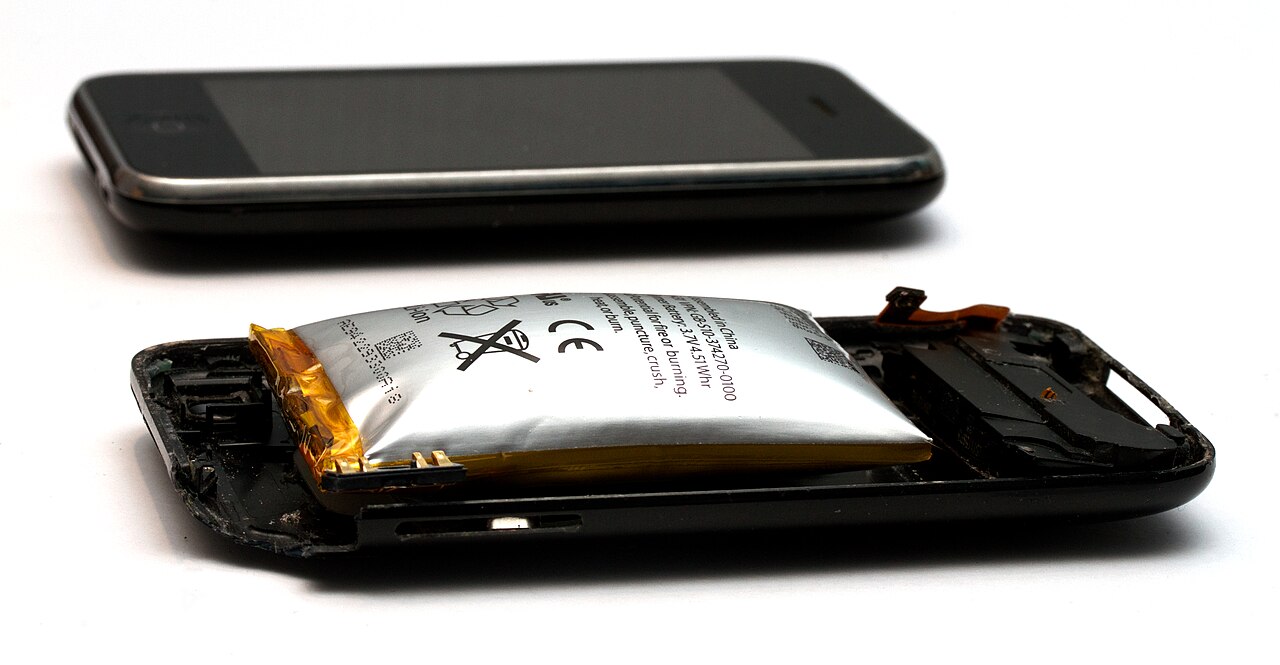
Use a charger that meets the device’s specifications and stop demanding activities when the phone feels hot. There is no need to deliberately drain the battery until the phone shuts down repeatedly to improve the health reading. Take the phone to a technician if it frequently shuts down unexpectedly, continues to have charging problems, or displays a service recommendation. If the casing bulges, the screen lifts, there is an unusual smell, or the device becomes extremely hot, stop using and charging it; do not press on it, take it apart, or force it to turn on.