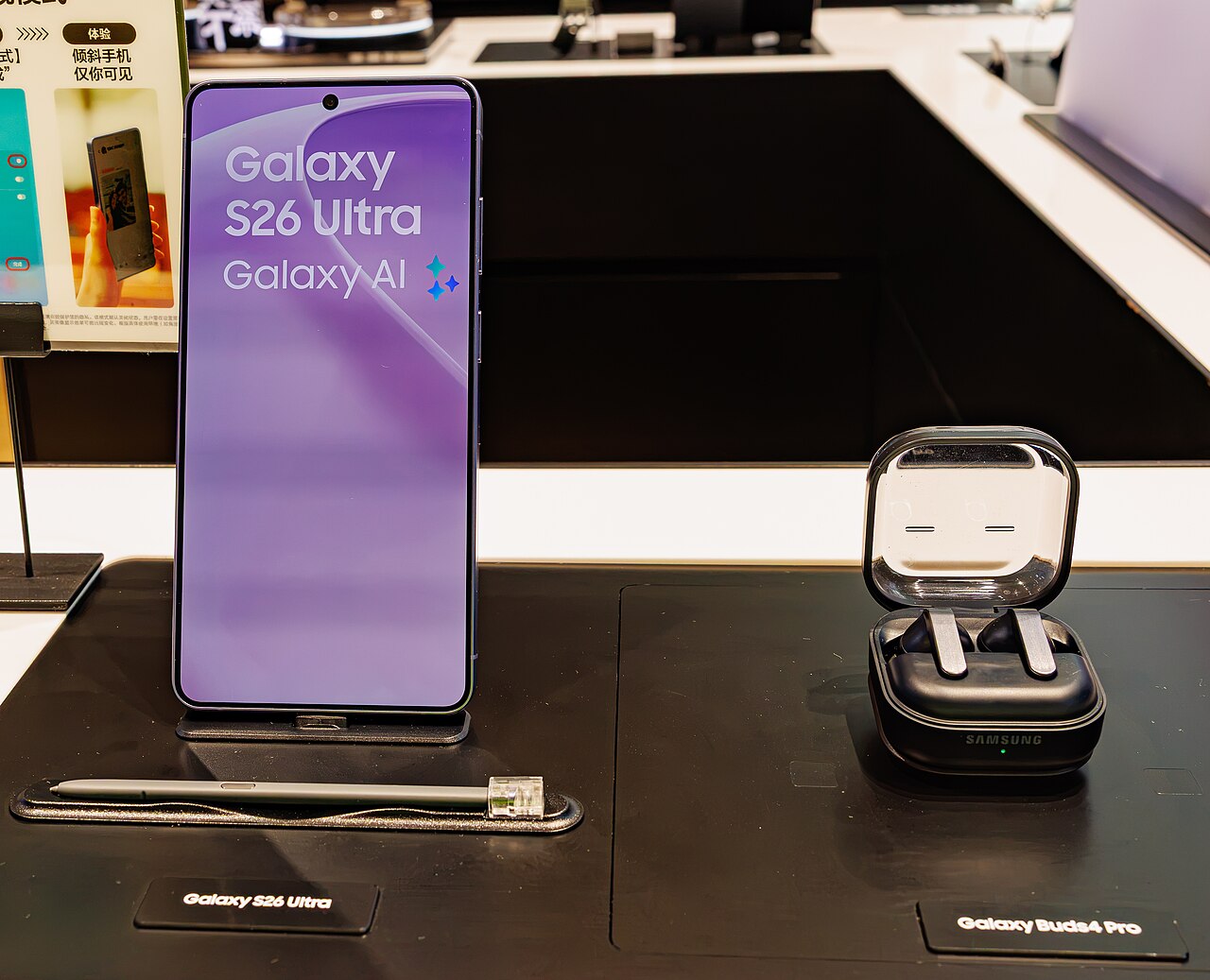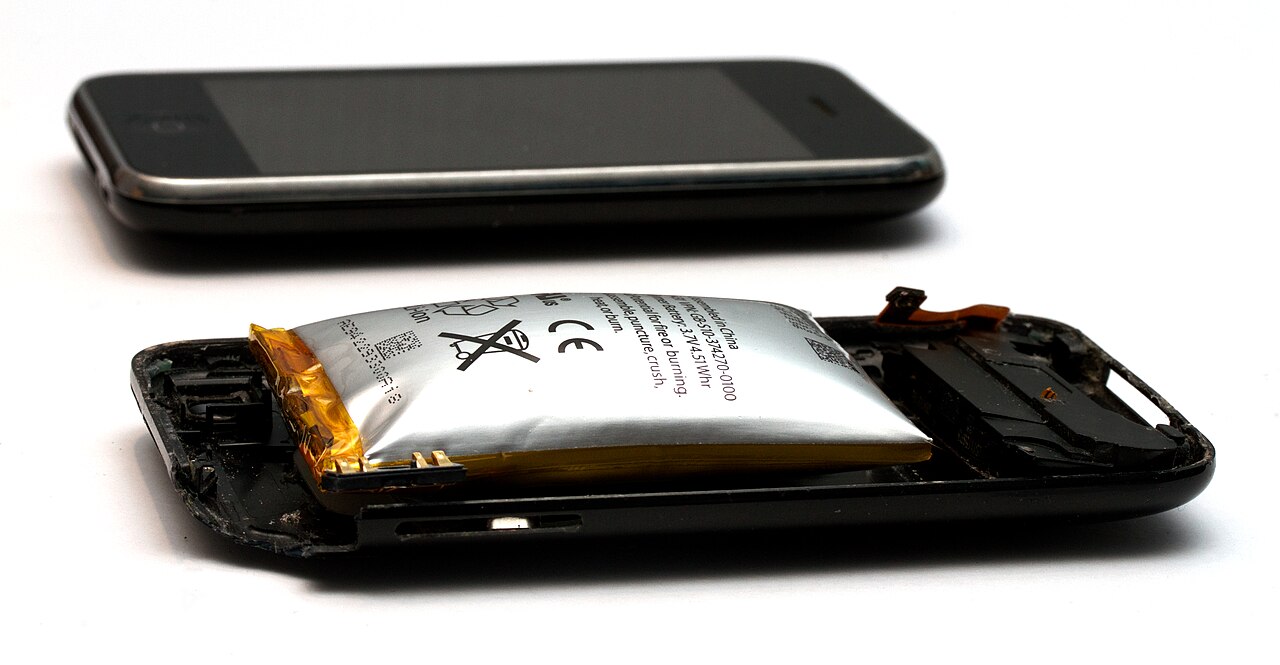
A general guide to phone care and repair. For hardware damage, have your phone checked by a trusted technician.
Messages such as no service, searching for network, or emergency calls only indicate that the phone is not connected to regular cellular service. As a result, calls, text messages, and internet access through the SIM are disrupted even if Wi-Fi still works. When diagnosing the issue, the first step is to distinguish between carrier disruptions, SIM problems, device settings, and physical damage before deciding what action to take.
Distinguish signal loss from internet problems
Check whether the signal indicator is completely empty or whether signal bars are still visible but the internet is not working. If regular calls still work, focus on the data plan, the SIM selected for internet access, and cellular data settings. Internet access point settings are not the primary step for resolving a no service message because their function relates to data connections.
Recall when the problem began. If the signal disappears when entering a basement or an enclosed building, check again in a safe, open area. Compare it with another phone using the same carrier at that location. If both are experiencing problems, check service information through the carrier’s official channels using Wi-Fi or another device.
Check the connection and service status
Turn airplane mode on briefly, turn it off again, then wait while the phone attempts to connect. If this does not work, restart the device. Make sure the cellular line you are using is enabled, especially on dual-SIM phones. Use automatic network selection so the device can choose a supported network without being locked to an unavailable manual selection.
Check the SIM’s validity period and service status through the carrier’s official channels. A deactivated SIM requires assistance from the carrier, not replacement of phone components. For eSIM users, make sure the line is enabled and do not delete the profile as a test, because reactivation may require the carrier’s help. Do not make test calls to emergency numbers; if you need to contact someone immediately, use another device with working service.
Check the physical SIM without forcing anything
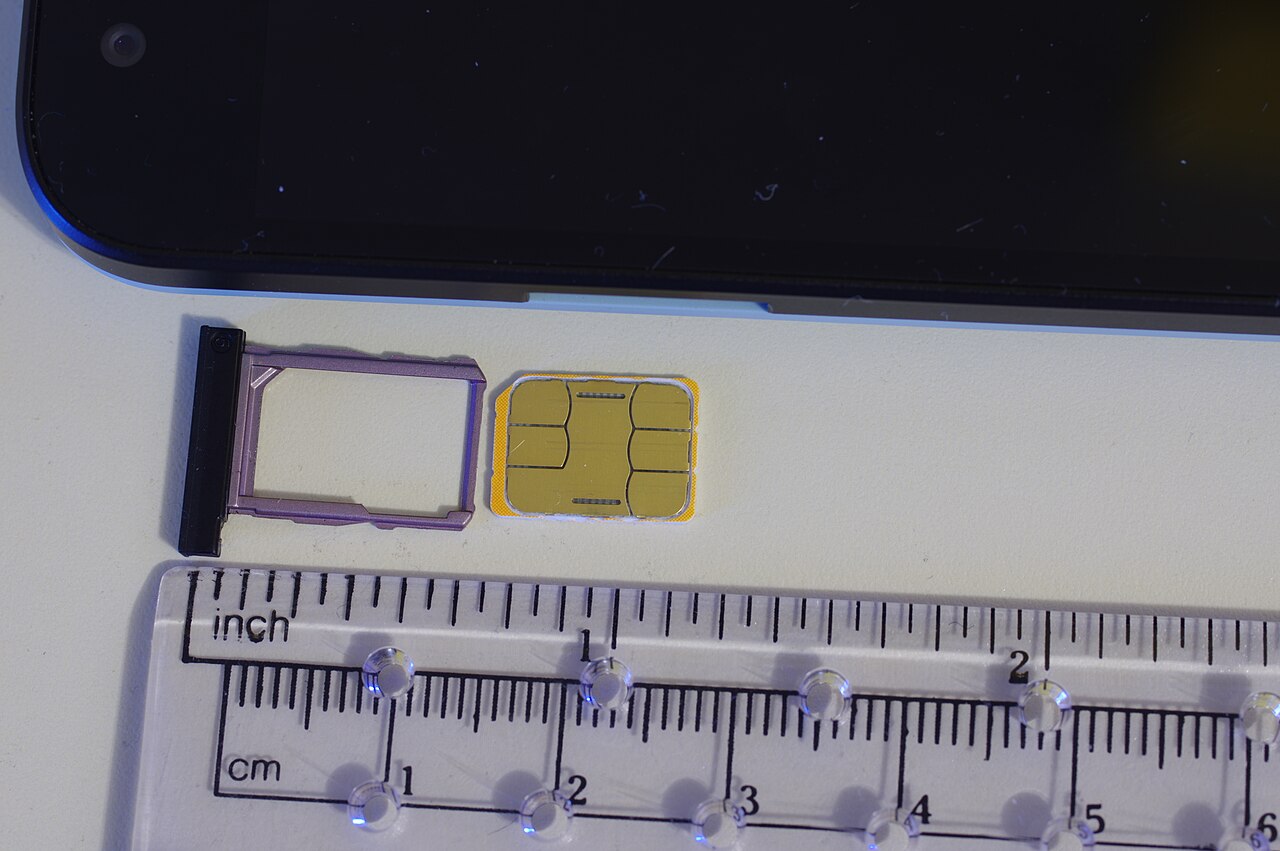
If you use a physical SIM and know where the SIM tray is located, turn off the phone before removing it according to the device’s instructions. Use a suitable eject tool only in the correct tray hole, not a microphone hole. Stop if you are unsure which hole to use or if the tray feels stuck. Inspect the SIM for cracks, deformation, or dirt, without scraping the metal contacts or spraying liquid into the slot.
Cross-testing helps narrow down the source of the problem. With the other device owner’s permission, try the SIM in a compatible phone, or try another active SIM in the affected phone. A SIM that still fails in another device needs to be checked by the carrier. If several active SIMs fail only in one phone, that device needs further inspection; this result does not yet identify which component is faulty.
Limit troubleshooting attempts and recognize when repairs are needed
If the basic checks do not resolve the problem, check for system updates through the official menu while connected to stable Wi-Fi. A network settings reset may be considered after reading the on-screen explanation, because saved Wi-Fi networks and certain connection settings may be erased. Avoid immediately performing a factory reset, installing signal booster apps, or using hidden codes you do not understand.
Take the phone to a technician if the problem persists after the SIM and carrier service have been confirmed to work, especially if the issue began after an impact or exposure to liquid. If the device is still wet, turn it off and do not charge it. Note when the problem began and the results of checks already performed. A technician needs to inspect the SIM connection path, antenna, and communication circuitry before determining what repairs are needed.