A general guide to phone care and repair. For hardware damage, have your phone checked by a trusted technician.
The system update is complete, but apps take longer to open, screen transitions stutter, or the keyboard responds slowly. These issues need to be checked step by step because both software changes and the device’s condition affect performance. During a service inspection, the sequence in which symptoms appear provides an initial clue, not proof that the update damaged the phone.
Distinguish system adjustments from persistent problems
After an update, the system may continue working in the background on tasks such as optimizing apps, indexing files, and syncing data. These activities use resources, so the phone may respond more slowly and feel warmer. Watch for whether the problems ease once the device finishes these activities, rather than judging performance only immediately after startup.
Note what feels slow: the entire interface, a single app, or only content that requires an internet connection. If the settings menu remains responsive but videos keep buffering, check the connection first. If only one app has problems, the troubleshooting approach differs from that for a phone that stutters even on the home screen. Avoid running games or other demanding tasks while assessing the device’s initial condition.
Start with checks that do not erase data
Make sure the update process is fully complete and no installation indicator remains active. Do not force the device to shut down while installation is in progress. Once the phone can be used normally, restart it through the power menu. Next, check for app updates through the official app store and system fixes through settings. Apps also need updates to remain compatible with system changes.
Check storage space through settings. Nearly full storage limits the working space available for temporary files and app updates. Delete unnecessary downloads or move photos and videos after confirming that the copies can be opened. Avoid deleting system folders or installing cleaning apps that promise instant speed improvements. For a problem affecting a single app, try closing and reopening it before taking other steps.
Pay attention to temperature, battery condition, and power settings
Phones limit performance when temperatures rise to protect their components. If the phone feels hot during use, stop demanding activities, keep it out of direct sunlight, and let it cool in a shaded, well-ventilated place. Do not put it in a refrigerator, apply ice, or cool it with water, as temperature changes and moisture can cause new problems.
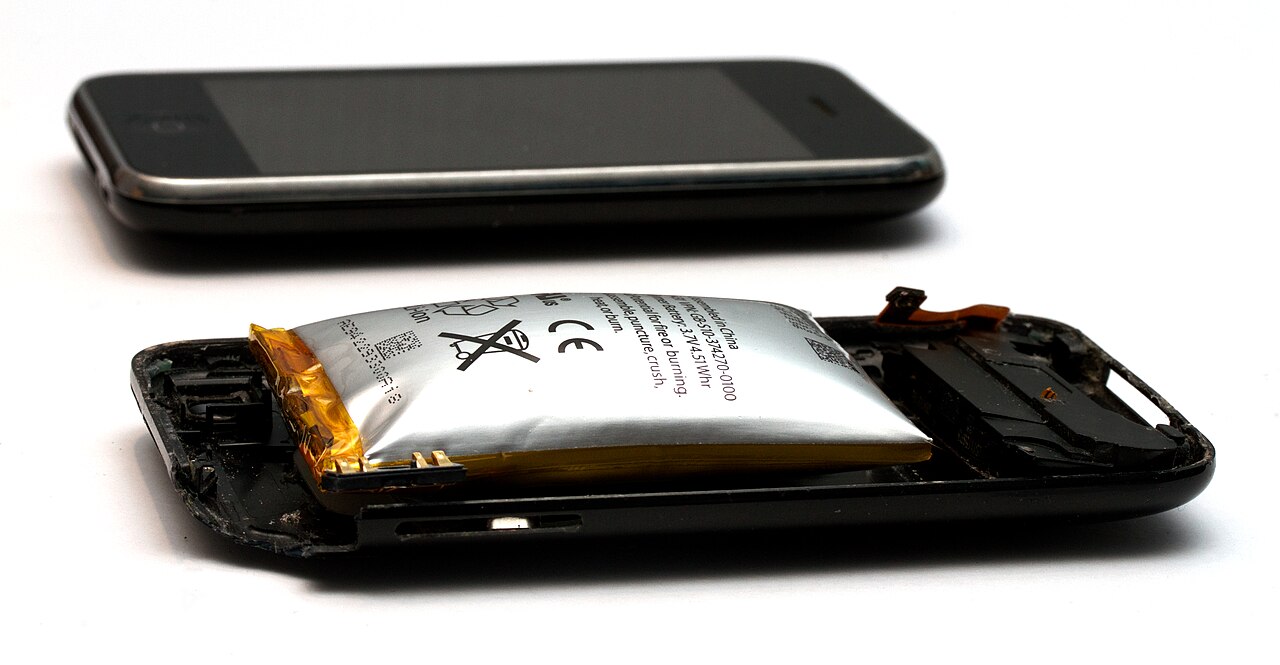
Check whether power-saving mode is active, as it may limit certain activities and responsiveness. On devices that provide battery health information, read any warnings without judging battery condition solely by how long it has been in use. If the battery is swollen, the screen or cover is lifting, there is an unusual smell, or the phone becomes excessively hot while idle, stop using and charging it. Do not press down on any raised area; take it to a technician.
When to back up data and seek a technician’s inspection
If slow performance remains disruptive after basic checks, back up important data using official features and make sure the backup can be accessed. Record when the symptoms began, which apps are affected, and whether the phone also freezes or shuts down on its own. This information helps a technician distinguish between app, system, storage, and component issues without immediately guessing what is faulty.
Take the device for inspection if it frequently restarts on its own, fails to reach the home screen, is difficult to use for backing up data, or remains very slow during light use. A factory reset is not the first step because it erases data and does not fix faulty components. Avoid installing system files from unofficial sources or attempting to downgrade the system yourself.