A general guide to phone care and repair. For hardware damage, have your phone checked by a trusted technician.
Vibration helps phone owners notice calls, messages, or touch feedback without relying on sound. When this function stops working, the cause needs to be traced, from the settings to the device’s physical condition. An important first step in troubleshooting is to establish whether vibration has stopped entirely or is missing only during certain activities.
Identify when vibration is missing
Notice when vibration does not occur: during incoming calls, message notifications, typing, or taps on navigation buttons. These functions may have separate settings. If the keyboard does not vibrate but calls still produce vibration, the vibration motor is demonstrably working during that test. Checks should initially focus on the keyboard or touch feedback settings.
Also note when the problem began. Was it after changing a setting, installing an app, updating the system, dropping the phone, or exposing it to liquid? This history helps guide troubleshooting, but it is not enough to confirm that a particular component is faulty. Weak or intermittent vibration, or vibration accompanied by a rattling noise, should also be reported to the technician.
Check the settings step by step
Open the sound and vibration settings, then make sure vibration for calls and notifications is enabled. On devices with vibration intensity settings, make sure the level is not set to the lowest setting or turned off. Also check the option for vibration in silent mode. Menu names and available options differ between Android and iPhone.
Next, check Do Not Disturb or Focus mode, as these modes can restrict notifications. If the problem occurs in only one app, check its notification permissions in the system settings and its notification options within the app. On devices with a system-wide vibration control in the accessibility menu, make sure that control is not turned off. Keyboard vibration usually has its own toggle.
Test safely without taking the phone apart
After checking the settings, restart the phone using the normal procedure. Then test it with an incoming call and any vibration features available in the settings. Hold the device while testing so its response is easier to feel; do not rely solely on the sound it makes when placed on a table. Compare the results across several functions to see whether the problem affects all vibration or only certain uses.
If the problem began after an app or system change, check for official updates through the device’s menus and the official app store. Back up important data before making further changes. Do not immediately reset the phone to factory settings, as this can erase data and will not repair damaged physical components. Avoid apps that promise to repair the vibration motor, test codes you do not understand, and tapping or shaking the device.
Recognize when to seek a technician’s assessment
Take the phone to a technician if vibration remains absent in every test after you have checked the settings and restarted the device. An inspection is also needed if the problem follows an impact or exposure to liquid, or if the vibration feels rough and is accompanied by unusual sounds. The vibration motor, component connections, or control circuitry need to be inspected before the cause of the fault can be determined.
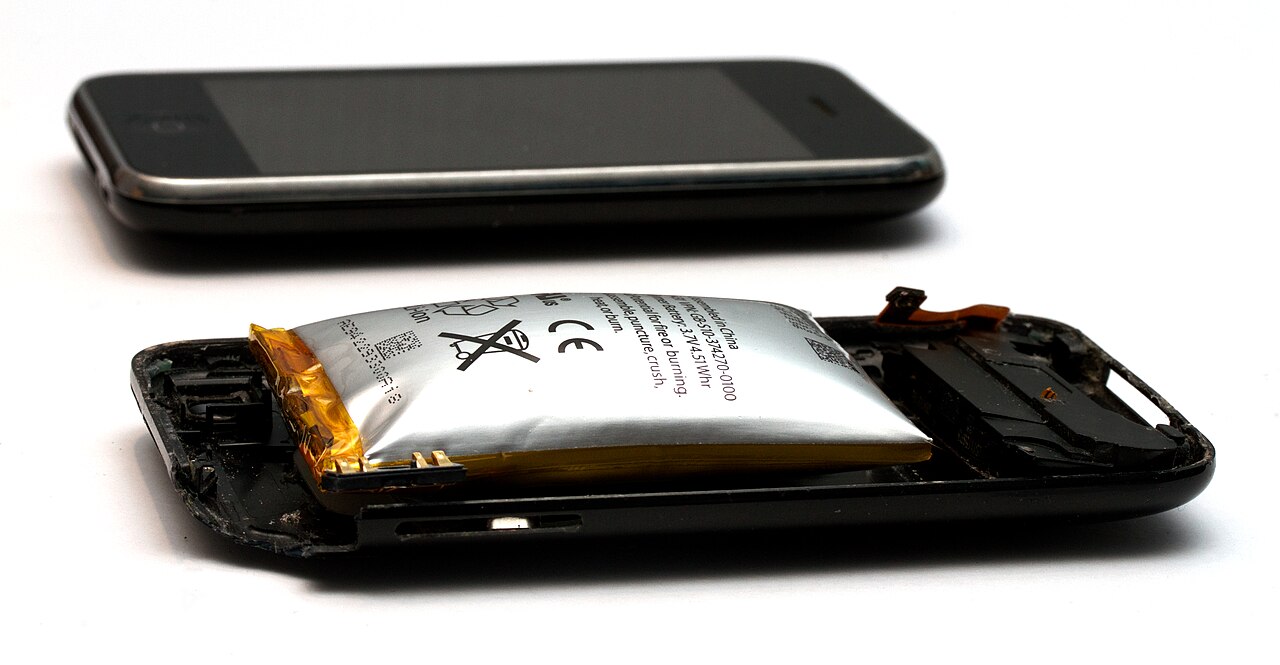
Do not take the device apart or press on its casing to try to restore vibration. If the phone appears swollen, the screen is lifting, or it feels unusually hot, stop using it and do not charge it. Under normal conditions, back up your data before handing the phone over for service, and explain which tests you have already performed. This information helps the technician investigate the problem without guesswork.