A general guide to phone care and repair. For hardware damage, have your phone checked by a trusted technician.
Audio problems often feel the same to users: earphones produce no sound, the phone’s speaker keeps playing, or a Bluetooth device’s name does not appear. However, an accessory that is not detected needs to be distinguished from one that is connected but has not been selected as the audio output. During troubleshooting, distinguishing between these two situations helps determine the next step without immediately concluding that a component is damaged.
Distinguish Between Not Detected and No Sound
Start by playing audio at a low volume, then check the phone’s audio output options. If the earphones or Bluetooth speaker are already listed as a connected device, select that device as the audio output. Gradually increase the volume on the phone and the accessory if each has its own volume control.
Try another app to distinguish an app issue from a connection problem. Music, calls, and in-app conversations may use different output settings. On Android, check whether media audio or call audio is enabled for the Bluetooth device if those options are available. If the problem occurs in only one app, close and reopen that app before changing other settings.
Check Wired Earphones and Adapters
Unplug the earphones, then inspect the connector and port under adequate lighting. A case that partially covers the port may prevent the connector from being fully inserted. Remove the case if it gets in the way, then insert the connector straight without forcing it. Also check for damaged cable insulation, a bent connector, or a loose connection.
Earphones and adapters with the same connector shape do not necessarily support the same audio system. For USB-C connections, digital audio support and audio conversion need to be compatible with the phone. Check the accessory’s compatibility information, then cross-test using earphones or an adapter known to be compatible and working. Do not insert needles, metal objects, cleaning fluids, or other tools into the port. If moisture is visible or a liquid warning appears, stop using wired accessories and follow the manufacturer’s drying instructions.
Repeat Bluetooth Pairing Correctly
Make sure the earphones, charging case if used, or speaker have sufficient charge. Activate pairing mode according to the accessory’s instructions; simply turning the device on does not always make it discoverable. Keep the accessory close to the phone during pairing. If the accessory is still connected to a laptop, tablet, or another phone, disconnect it first.
Turn Bluetooth off and back on, then restart the phone and accessory. If the device’s name is already saved but the connection keeps failing, select the option to forget the device, then pair it again. This removes the selected pairing, so the pairing process must be repeated. If available, check nearby devices or Bluetooth permissions for the companion app. Avoid immediately resetting network settings, as this may remove saved Wi-Fi networks and Bluetooth pairings.
Recognize the Limits of Troubleshooting on Your Own
Cross-testing helps narrow down the cause: try the accessory on another device, then try another compatible accessory on the affected phone. Perform the tests one at a time so the results are clear. If only one accessory fails, focus further checks on that accessory or its compatibility. If several compatible accessories all fail, the phone needs further inspection.
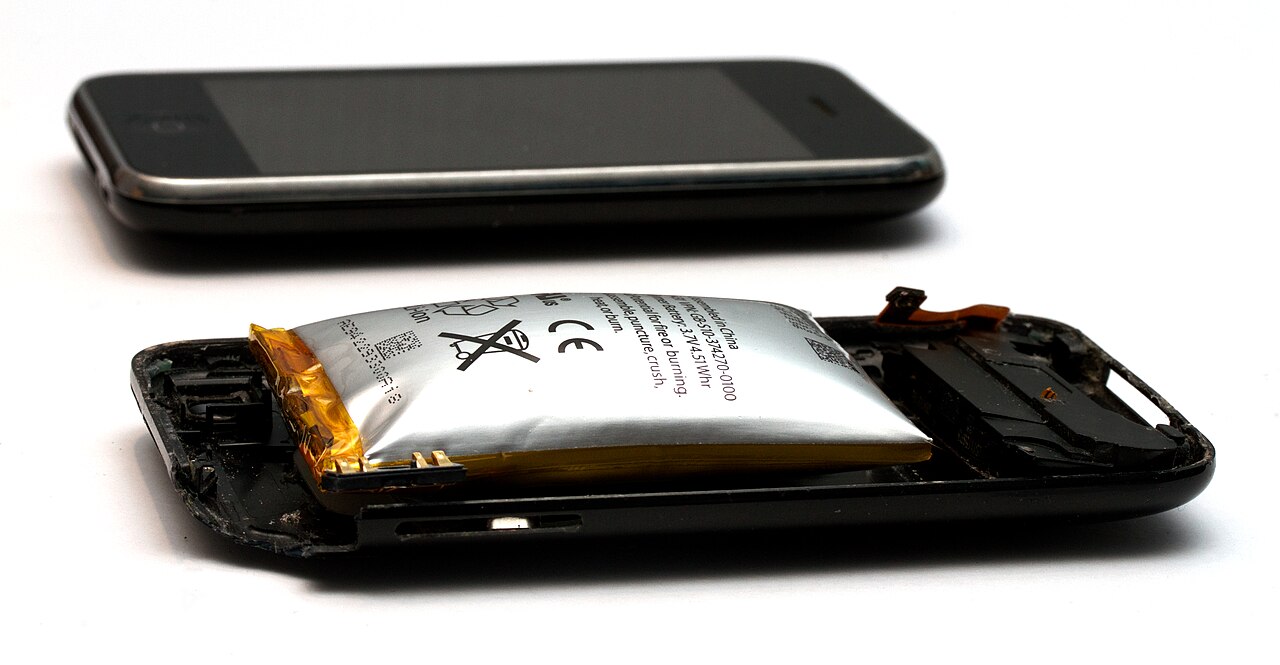
Take the phone to a technician if the port is loose, sound cuts out when the connector moves, Bluetooth cannot be enabled after restarting the phone, or the problem appears after an impact or exposure to liquid. Stop using any accessory that becomes unusually hot, smells burnt, or has a swollen battery. Do not disassemble the device to determine the cause. Before handing over the phone, back up important data and record the tests already performed without sharing account passwords.